How can I get the login to show up on my site?
There are three primary ways to display the login form on your site:
- Home Page - to get the login form to display on your home page, follow these steps:
- Open the People manager
- Click the Registration Options tab
- Check the box that says "Display login form on home page"
- Click the small Save and Exit buttons in the upper right corner of the registration options window
- Click the Manager Settings tab
- Save and Exit (this confirms the addition of the login form)
- Alternate Page - to get the login form to display on an alternate page in your site, follow these steps (this will not include the Just for You section):
- Create or open the page where you want to display the login form
- Click the Panels tab
- Click the Search Community Content button
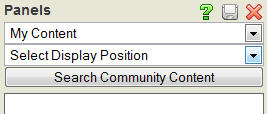
- Use the search bar at the top of the Community Content Portal to enter the phrase "site login" and click Search
- Click the "Site Login Form" title to open the panel
- Click the Add to My Site link to bring the panel back to the Panels dialog box
- Select the desired panel position from the drop-down list
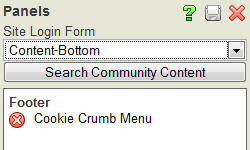
- Click the small Save and Exit buttons in the upper right corner of the panels window
- Login Page - to link to the system-generated login page of your site, follow these steps (this also requires the steps in option 1 - this works best for custom designed sites where the login form has been manually removed in the design settings):
- Create or open the page on which you want to place the link to the login page
- Click the Insert/Edit Link
 icon on the toolbar
 - Click the My Pages button
- Select "Search" from the list of pages
- In the URL field, highlight the word "search" at the end of the line and replace it with the word "login" (no quotation marks)
- Click OK
- Save and Exit
| Miscellaneous: | Community Content Portal Miscellaneous |